Two-Factor Authentication: Which Type Should You Use?
Quick answer: Any two-factor authentication (2FA) beats none, so turn it on first and optimize second. If you can choose, a hardware security key is the strongest option, an authenticator app is the sensible everyday upgrade, and text-message codes are the weakest of the common choices but still better than a password alone. Start with your email, then your bank and your password manager, and save your backup codes before you need them.
Key takeaways
- The FTC says text codes are common and simple but have drawbacks, and that an authenticator app or security key is safer.
- CISA says phishing-resistant MFA, based on the FIDO standard, is the benchmark to aim for, but that any MFA is better than none.
- Protect your email account first, because it can unlock your other accounts through password resets.
- Backup codes and a second sign-in method are what save you when a phone is lost or broken. Set them up on day one.
- Never read a verification code out to someone who contacted you first.
What 2FA actually does (in one minute)
A password is something you know. 2FA adds a second check, usually something you have (your phone or a small key) or something you are (a fingerprint). The point is simple: if a criminal gets your password from a data breach or a fake login page, the password alone no longer opens the door.
You will see it called two-factor, two-step verification or multi-factor authentication (MFA). They are close enough cousins that the settings menu in your account will usually have one of those phrases. CISA, the US cybersecurity agency, advises turning it on for every account that offers it, and asking providers that do not offer it why not.
The four common types, compared
Here is how the usual options stack up. The ratings follow the FTC and CISA descriptions as of November 2026; individual services can differ.
| Type | Convenience | Phishing resistance | If you lose your phone |
|---|---|---|---|
| Text or email code | Very easy, nothing to install | Low. Codes can be tricked out of you, and a SIM swap can redirect texts | Easy if you keep your number; a new SIM restores it, but so does a thief’s |
| Authenticator app | Easy after setup, a few taps per login | Medium. Not exposed to SIM swaps, but you can still be tricked into typing the code on a fake site | Depends on whether the app backs up or you saved recovery codes |
| Push prompt (approve or deny) | Easiest, one tap | Medium. Number matching helps, per CISA | Same as the app it lives in |
| Hardware security key | A small device you plug in or tap | High. FIDO-based keys block fake websites, per CISA | Register a second key and keep it somewhere safe |
Text messages: fine, not great
The FTC calls text codes a common and simple method, but notes they have drawbacks: hackers can take over your phone number in a SIM swap attack and get the codes. It says an authenticator app or security key is safer. The main reason is the SIM swap. In that scam, a criminal convinces your mobile carrier that your phone was lost, gets your number moved to a SIM card they control, and then receives your calls and texts, including verification codes.
That does not mean you should rip out text codes today. If a site only offers SMS, use it. Just add a PIN or password to your mobile carrier account (the FTC suggests this), and move your most important accounts to an app or key when you can.
Email codes
Some services send a code to your inbox. That is only as safe as your email account, so the FTC advises a strong password and 2FA on the email account as well.
Authenticator apps: the practical sweet spot
An authenticator app lives on your phone and generates a fresh code about every 30 seconds, according to CISA. The FTC says it is safer than text because a SIM swap cannot intercept it. Some apps also send push notifications that you approve or deny with a tap. The FTC page names Google Authenticator, Microsoft Authenticator and Duo as examples; naming them here is not a recommendation, only an illustration that these are the apps the agency pointed to.
The catch is that an app does not stop you from typing a valid code into a convincing fake site. It also raises the “new phone” question, which we will cover below.
Hardware security keys: strongest, slightly more effort
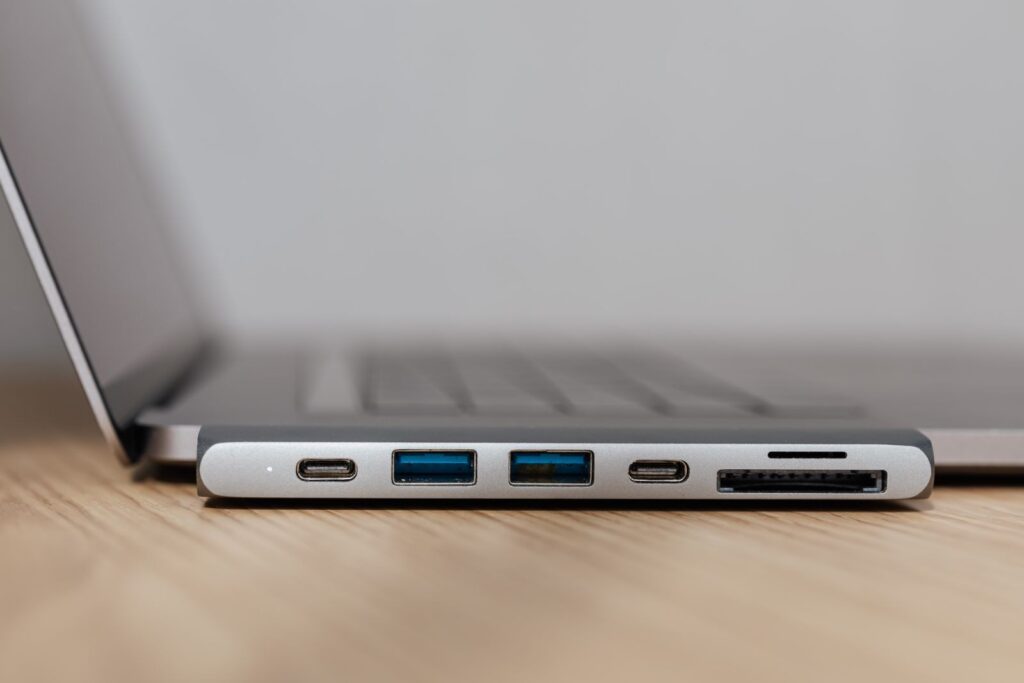
A security key is a small physical device that plugs into a USB port or connects over near-field communication (NFC). The FTC calls it the strongest method because it relies on encryption to confirm it is linked to your account, rather than on a code someone could steal. CISA describes FIDO and WebAuthn as the widely available phishing-resistant option: if you land on a fake site, the protocol blocks the attempt.
Keys are best for people who are high-value targets for account takeover, or who simply want the best protection on email and a password manager. The trade-off is that you must carry the key (or keep one at home) and that not every service supports one. If a service does, register two keys so a lost one does not lock you out.
One note on the newer trend: passkeys are a related sign-in method that many services now offer, and they are worth using where available.
What to protect first
You do not need to do everything this weekend. Use this order.
- Email. CISA points out that email is especially valuable to attackers because it can lead to takeovers of other accounts, such as social media, banking and shopping.
- Your password manager (if you use one). It is the master key to everything else.
- Banking, investment and payment apps. The FTC lists bank, email, social media, tax filing sites and payment apps as the sensitive accounts to do first.
- Your mobile carrier account. If a thief controls your number, text-based resets get easier.
- Social media, shopping and everything else that offers it.
How to turn it on
CISA’s steps are short. Open the account settings (often under profile, preferences or privacy), find the security section, look for two-factor or two-step authentication, and pick one of the offered methods. When the service asks whether to remember your device, say yes only on devices you own, never on a shared or public computer.
Backup codes and what to do if you lose your phone
This is the part people skip, then regret. Here is the safe order of operations:
- Generate backup codes when you set up 2FA. As one example, Google’s account help says each set contains 10 codes, each code works once, and creating a new set deactivates the old one. Other services differ, so check each one.
- Store them offline. Google suggests keeping them somewhere secure, like with your passport or other important papers. Do not store them in a plain note on the same phone.
- Add a second method. If a service lets you register a backup phone number, a second app device or a second key, do it.
- Know the recovery path. Before you wipe or replace a phone, check how your authenticator app moves to a new device. Some apps offer an encrypted backup; others need you to re-register each account.
If your phone is already lost or stolen, use a backup code or another sign-in method to get in, then change the account password and review the security settings. If your phone number was taken over, contact your carrier immediately to regain it, then change passwords, check your financial accounts for unauthorized activity and report anything you find, which is the FTC’s advice for SIM swap victims.
Common mistakes to avoid
- Sharing a code. The FTC warns not to share a verification code with someone who contacted you first. A real company does not need you to read it back.
- Approving a prompt you did not trigger. If a push request shows up when you are not signing in, deny it and change your password.
- Using a reused password. 2FA helps, but a unique password per account is still the first layer. If you suspect a breach, change the password right away.
- Ignoring phishing. The FTC notes legitimate companies will not text or email a link asking you to update payment information. Go to the site or app yourself.
A quick setup checklist
- Email account: strong unique password, 2FA on, backup codes saved.
- Password manager: 2FA on, ideally an app or a security key.
- Bank and payment apps: strongest method each one offers.
- Mobile carrier: PIN or password added to the account.
- Backup codes printed or stored offline, not only on your phone.
- A second device, number or key registered where the service allows.
- Remembered-device option used only on your own devices.
Frequently asked questions
Is SMS 2FA still worth using?
Yes, if it is the only option. The FTC says text codes have drawbacks, such as SIM swap attacks, but they still add a barrier that a stolen password alone cannot get past. Upgrade important accounts to an app or key when you can.
Do I need a security key?
Not necessarily. CISA treats phishing-resistant MFA as the benchmark, and a key is the most common way to get it, but an authenticator app is a solid step for most households. Consider a key for your email and password manager.
What if I get a code I did not ask for?
Treat it as a sign that someone has your password or is trying to trick you. Do not share the code, change the account password, and check your recent sign-in activity.
Can I turn on 2FA for everything at once?
You can, but it is easier to work through the priority list above. Start with email and finance, then add the rest over a few weeks.
Before you decide
Choose the strongest method you will actually keep using. A key in a drawer you never plug in is worth less than an app you use daily. Pick one account today (your email), turn on 2FA, download the backup codes and put them somewhere that is not your phone. That single ten-minute task closes the door on most account takeovers that start with a stolen password.
Sources
- Use Two-Factor Authentication To Protect Your Accounts, Federal Trade Commission
- SIM Swap Scams: How to Protect Yourself, Federal Trade Commission
- Turn On MFA, Cybersecurity and Infrastructure Security Agency (CISA)
- More than a Password, Cybersecurity and Infrastructure Security Agency (CISA)
- Sign in with backup codes – Computer – Google Account Help, Google
- How To Recognize and Avoid Phishing Scams, Federal Trade Commission
Last updated: November 2026. This article is general information, not IT-security advice.