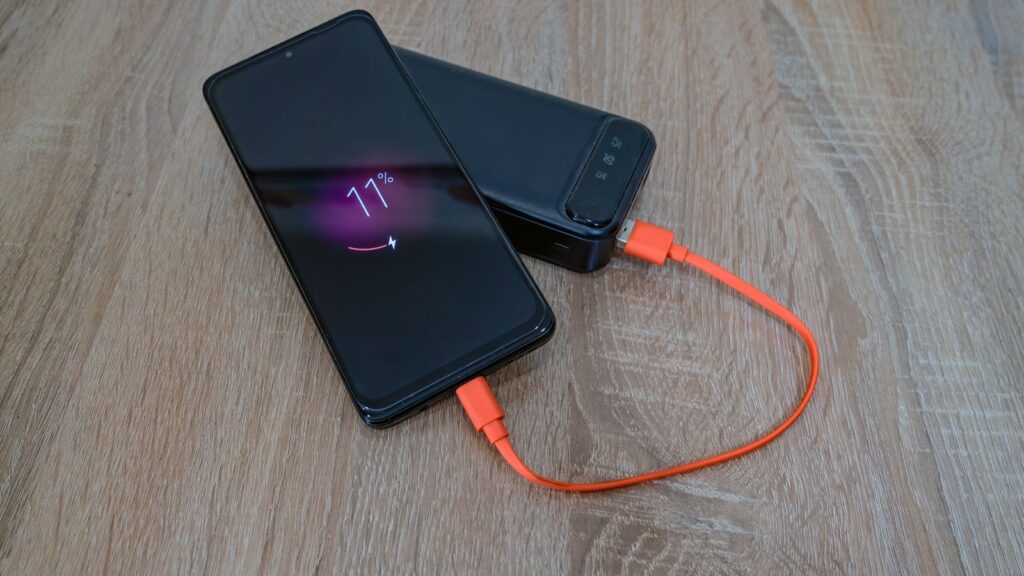
USB-C Explained: Why Two Cables Can Charge So Differently

Quick answer: USB-C describes the shape of the plug and nothing else. It says nothing about how fast a cable moves data, how many watts it can carry or whether it can drive a monitor. Those abilities live in separate layers (USB data speeds, USB Power Delivery, Thunderbolt, DisplayPort video), and each cable and each device implements its own mix. So two identical-looking cables can behave very differently. Look for printed speed and wattage markings, and prefer USB-IF certified products.
Key takeaways
- The USB-C connector is a physical standard. Speed, power and video are decided by what is built into the cable, the charger and the device.
- A certified USB-C to USB-C cable must be labeled 60W or 240W and, unless it is a basic Hi-Speed cable, must also show a data rate such as 20Gbps.
- Charging, data and video each run at the level of the weakest link among charger, cable and device.
- Thunderbolt uses the same oval plug but adds stricter minimums, so it is a certification on top of USB-C, not a replacement.
- Buy cables that show USB-IF certification marks from trusted sellers, and check them against what your laptop or monitor actually needs.
Why is USB-C like this?
A reasonable person might expect a connector to be a promise. USB-C broke that habit, and for a respectable reason.
USB-IF, the group that manages the standard, describes the Type-C connector as built for smaller, thinner devices yet sturdy enough for laptops and tablets. It is reversible: the plug goes in either way up, and the cable works in either direction. The price of that elegance is that one small oval now serves a phone charger, a laptop power supply, a drive cable and a monitor lead, each with very different needs.
So the promises moved out of the plug and into layers underneath it. The connector became universal; the capabilities stayed specific.
The layers underneath the plug
Layer 1: data speed
USB 3.2 defines three transfer rates: 5, 10 and 20 Gbps (gigabits per second). The 20 Gbps rate comes from combining two 10 Gbps lanes, and USB-IF notes that USB-C cables were designed from the start for this multi-lane operation. USB4 goes further: USB-IF lists up to 80 Gbps over cables certified for 80 Gbps, while two-lane operation works over existing Type-C cables. When two devices are linked, they settle at the highest speed both sides support, so a fast drive on a slow cable is a slow drive.
Layer 2: power
USB Power Delivery (USB PD) is the layer that negotiates charging. According to USB-IF, PD was originally limited to 100W, using 20V and cables rated for 5A. Revision 3.1 raised the ceiling to 240W over full-featured Type-C cables, adding fixed voltages of 28V, 36V and 48V for 140W, 180W and 240W. There is also an adjustable voltage mode, where a device asks for intermediate voltages between 15V and the charger’s maximum fixed voltage.
Layer 3: video
Video over USB-C usually travels through DisplayPort Alternate Mode, a method VESA published in September 2014 that borrows some or all of the four high-speed lanes for DisplayPort signals. VESA’s own announcement is careful on one point: video works on devices that implement that mode. The connector alone does not guarantee it, which is why one USB-C port on a laptop can drive a monitor while its neighbor cannot.
Layer 4: Thunderbolt
Thunderbolt uses the same oval connector as USB-C, but Intel says its certification sets higher minimums for cables, computers and accessories. As of November 2026, Intel lists Thunderbolt 4 at a 40 Gbps minimum, 100W charging from the computer and support for dual 4K displays. Thunderbolt 5 raises that to 80 Gbps both ways (up to 120 Gbps with Bandwidth Boost) and up to 240W.
Power and wattage: what the numbers mean
Wattage is the layer that causes the most grumbling, so here is the mechanism. A charger advertises what it can offer. The device decides what it asks for. The cable has to survive the request. Whichever of the three is weakest sets the pace.
USB-IF’s labeling pairs power with current: a cable that handles 20V at 3A is a 60W cable, which is the lower of the two logo levels. Cables beyond that tier use the 240W logo. Many cables that carry more than 60W contain an e-marker, a small chip in the plug that tells chargers and devices what the cable can safely carry. USB-IF’s cable program has its own test plan for e-marked cables, and its specification documents describe cables rated above 3A as electronically marked. If a cable promises 100W or more, it should say so on the cable or its listing.
So a 140W charger plus a 60W cable gives you 60W at most. Nothing is broken; the system is being cautious.
How to tell what a cable supports
Start with the printed marks. USB-IF requires every USB-C to USB-C cable in its certification program to carry a 60W or 240W power icon before testing begins. Except for Hi-Speed (USB 2.0) cables, it must also show its data rate, so a 20Gbps cable rated at 20V and 3A is marked “20Gbps/60W”. The test lab verifies the logo, and a cable that fails cannot carry it. Hi-Speed cables need the power icon and may optionally add a Hi-Speed or USB 2.0 mark.
Then check the cable’s standing. USB-IF’s advice is to buy certified products from trusted sources that show the certified logos on the packaging, in product briefs or on the cable itself. For a specific cable, the USB-IF Integrators List is the record of what has passed testing. A certified cable does not add features to the devices it connects.
No markings at all? Then you are guessing.
Cable types at a glance
| Cable type | Typical use | What to look for |
|---|---|---|
| Hi-Speed (USB 2.0) USB-C to USB-C | Phone charging, light data | Power icon (60W or 240W); optional Hi-Speed mark |
| USB 5, 10 or 20 Gbps USB-C to USB-C | External drives, phone transfers, many docks | Data rate plus wattage, for example 20Gbps/60W |
| USB4 class, 40 Gbps | Docks, single high-resolution displays, fast storage | 40Gbps marking plus 60W or 240W |
| USB4 80 Gbps | Newest high-bandwidth displays and storage | “80Gbps certified cable” marking |
| 240W USB PD 3.1 cable | Large laptops and high-power devices | 240W logo; e-marked; charger and device must also support it |
| Thunderbolt cable | Multiple monitors, fast docks, creative work | Thunderbolt mark; Thunderbolt 4 means 40 Gbps minimum |
A basic Hi-Speed cable suits a bedside phone charger; an 80 Gbps cable would be a delightful way to overspend on one.
Common failures and what they usually mean
Charging is slow
Check the three links in order. First, the charger’s output: a small phone charger cannot feed a laptop quickly. Second, the cable’s rating: a 60W cable caps the whole chain. Third, the device itself, which may simply not ask for more.
The monitor shows nothing
Because video depends on DisplayPort Alt Mode (or Thunderbolt or USB4) being implemented in the port, a USB-C port without it will charge and move files but never show a picture. Check the device’s specifications for video output on that specific port. Then check the cable: a basic Hi-Speed cable carries no data-rate marking, so it gives you no promise about video at all.
The laptop will not charge, or charges only sometimes
The likely cause is a charger or cable whose watts fall below what the laptop expects. What a laptop does with too little power varies by model, so check its manual. Try the original charger and a cable marked for the laptop’s wattage, and look at the device label to see what it requires.
What the EU common charger rules do and do not do
The European Commission requires USB-C as the common port. The rule has applied since 28 December 2024 to phones, tablets, cameras, headphones, portable speakers, handheld consoles, e-readers, earbuds, keyboards, mice and portable navigation systems, and since 28 April 2026 to laptops. Producers must give visual and written information about the power a device needs and whether it supports fast charging. By 28 December 2026 the Commission is due to report on whether cables should be sold separately too.
Note what this does not do: it standardizes the port and the information, not the cable. As of November 2026 the printed markings still matter.
Safety: certified cables and chargers
Charging cables carry real power, and some carry up to 240W. USB-IF ties its logos to passed compliance tests and says certified products are the ones to buy. It is also explicit that Power Delivery products must be tested and listed on its Integrators List to be certified. The practical point is simple: a product with no test record is an unknown. Prefer certified cables and chargers, use a charger rated for the device, and stop using a cable that is damaged, loose in the port or unusually hot.
Buyer checklist
- Decide the job first: charging only, file transfer, a monitor, or a dock.
- Check the device’s own specifications for its maximum charging watts, data speed and video support on that exact port.
- Look for a printed wattage (60W or 240W) and, unless it is a basic charging cable, a data rate such as 20Gbps, 40Gbps or 80Gbps.
- For laptops over 60W, choose a cable that states its wattage and is built to carry it.
- For multiple monitors or Thunderbolt docks, choose a cable with the Thunderbolt mark, not just a USB-C one.
- Buy from sellers that show USB-IF certification marks on the packaging or listing and, for important cables, search the Integrators List.
- Keep one marked cable per job, labeled with tape if the print wears off.
Frequently asked questions
Are all USB-C cables the same?
No. USB-C names the connector. Data speed, wattage and video ability depend on how the cable is built, and USB-IF notes that cables do not all have the same capabilities.
Will a higher-wattage cable make my device charge faster?
Not by itself. The device decides what to request, and the charger decides what to offer. A higher-rated cable only removes a ceiling, it does not add power.
Is Thunderbolt the same as USB-C?
The connector is the same. Thunderbolt is a certification with higher minimums: Intel lists 40 Gbps, 100W charging and dual 4K display support for Thunderbolt 4, and higher numbers for Thunderbolt 5.
Why does my USB-C port charge but not output video?
Video over USB-C needs DisplayPort Alt Mode, Thunderbolt or USB4 support in the port. VESA describes video as available on devices that implement the mode, not on every USB-C connector.
Before you decide
Think of USB-C as a hallway with several doors. The doorway is shared; what happens behind each door depends on the cable, the charger and the device. Check the markings and let the weakest link set your expectations.
Sources
- USB Type-C® Cable and Connector Specification, USB Implementers Forum (USB-IF)
- Cables and Connectors, USB Implementers Forum (USB-IF)
- USB Charger (USB Power Delivery), USB Implementers Forum (USB-IF)
- USB 3.2, USB Implementers Forum (USB-IF)
- USB4®, USB Implementers Forum (USB-IF)
- VESA® Brings DisplayPort™ to New USB Type-C Connector, VESA
- Thunderbolt™ Technology: The Fastest, Simplest, and Most Reliable USB-C Connection, Intel
- What the Commission is doing (One common charging solution for all), European Commission
Last updated: November 2026. This article is general information, not consumer or IT-security advice.