Home Office Setup Without the Aches: Screen, Chair and Desk Basics
Quick answer: You do not need a $900 chair to stop your neck and wrists from hurting. Put the screen straight in front of you, at least 20 inches away, with the top at or just below eye level. Keep your keyboard directly in front, elbows close to your body, wrists straight, feet flat on the floor (or on a footrest) and your lower back supported. If you work on a laptop, add a separate keyboard and mouse plus a stand so the screen can rise. Then, because no setup survives six hours of sitting still, build in short moves and screen breaks.
Key takeaways
- OSHA says there is no single “correct” posture that fits everyone, so treat the numbers below as starting points and adjust to your body.
- Screen position does most of the work: straight ahead, 20 to 40 inches away (Mayo Clinic), top of the screen at or slightly below eye level.
- A laptop alone is the usual culprit. Mayo Clinic suggests an external keyboard, mouse and a laptop stand for desk work.
- Cheap fixes count: boards under desk legs, a footrest or a stack of sturdy books, and a lamp moved away from the screen.
- Eye strain from screens is uncomfortable but, according to the American Academy of Ophthalmology, does not permanently damage your eyes.
Start with the problem you are fixing
Hunched shoulders, a sore neck by 3 p.m., tingling wrists after a long email day: these are the usual complaints of people who work at a screen. OSHA’s computer workstation guidance links awkward postures, repetition and strain with fatigue, eye strain, and neck and back pain. The good news is that the fixes are mostly about where things sit, not what you buy.
One honest caveat before we start. This is general information, not medical advice. If pain is sharp, spreading or not easing, talk to a doctor or a physical therapist instead of rearranging furniture and hoping.
The target posture in one picture
OSHA lists the goals for a computer workstation like this: the top of the monitor at or just below eye level, head and neck balanced over the torso, shoulders relaxed, elbows close to the body and supported, lower back supported, wrists and hands in line with the forearms, room for keyboard and mouse, and feet flat on the floor. Read that list as a mirror check: if you can answer yes to each line, your setup is in decent shape.
Setup targets, piece by piece
| Piece | What to aim for | Cheap fix if it is off |
|---|---|---|
| Chair | Backrest follows the curve of your spine; feet flat on floor; armrests (if any) let shoulders relax and elbows stay close | Raise or lower the seat; use a footrest, a small stool or sturdy books under your feet |
| Desk | Room for legs and feet; nothing stored underneath; space for monitor straight ahead | Clear the under-desk clutter; raise a low desk with sturdy boards or blocks under the legs |
| Monitor | Straight ahead, directly behind the keyboard, 20 to 40 inches away, top at or slightly below eye level | Stack a few books or a box under the screen; move the desk back |
| Keyboard and mouse | Keyboard directly in front, wrists straight, upper arms close to the body, hands at or slightly below elbows; mouse on the same surface within reach | Pull the keyboard closer; pad a hard desk edge or use a wrist rest |
| Lighting | Little glare from overhead lights, desk lamps and windows; screen sideways to the window | Tilt the screen, turn the desk, close blinds |
Chair: the part everyone overspends on
OSHA says a good chair supports the back, legs and arms and lets you change position through the day. It also says to try out different chairs before buying one, which is the single most useful sentence for anyone shopping online. A few details worth knowing: the backrest should follow your spine’s natural curve with lumbar support, the seat should let your feet rest flat on the floor or a footrest, and a five-leg base with casters is the stable, easy-to-move design OSHA describes.
Mayo Clinic adds the practical rule: set the chair height so your feet rest flat, or use a footrest so your thighs are parallel to the floor. With armrests, your arms should sit gently on them with elbows close and shoulders relaxed.
Desk: height and legroom beat style
Under the desk, you need room for legs and feet. Both OSHA and Mayo Clinic say not to store things there, which sounds obvious until you notice the printer box and the gym bag. If the desk is too low and cannot be adjusted, Mayo Clinic suggests sturdy boards or blocks under the legs. If it is too high, raise the chair and use a footrest, stool or a stack of sturdy books for your feet. A hard, square desk edge can press on your wrists; pad it or use a wrist rest to avoid what Mayo Clinic calls contact stress.
Monitor: the biggest single win
OSHA’s monitor tips are short: directly in front of you, at least 20 inches away, top line of the screen at or below eye level, and perpendicular to a window to cut glare. Mayo Clinic puts the screen about an arm’s length from your face, no closer than 20 inches and no farther than 40, and says bifocal wearers should lower it another 1 to 2 inches. The American Academy of Ophthalmology suggests sitting about 25 inches from the screen with your gaze slightly downward rather than straight ahead or up.
Those numbers overlap nicely: somewhere between 20 and 30 inches, with the top edge not above your eyes, is a safe zone for most people.
Laptop users: separate the screen from the keyboard
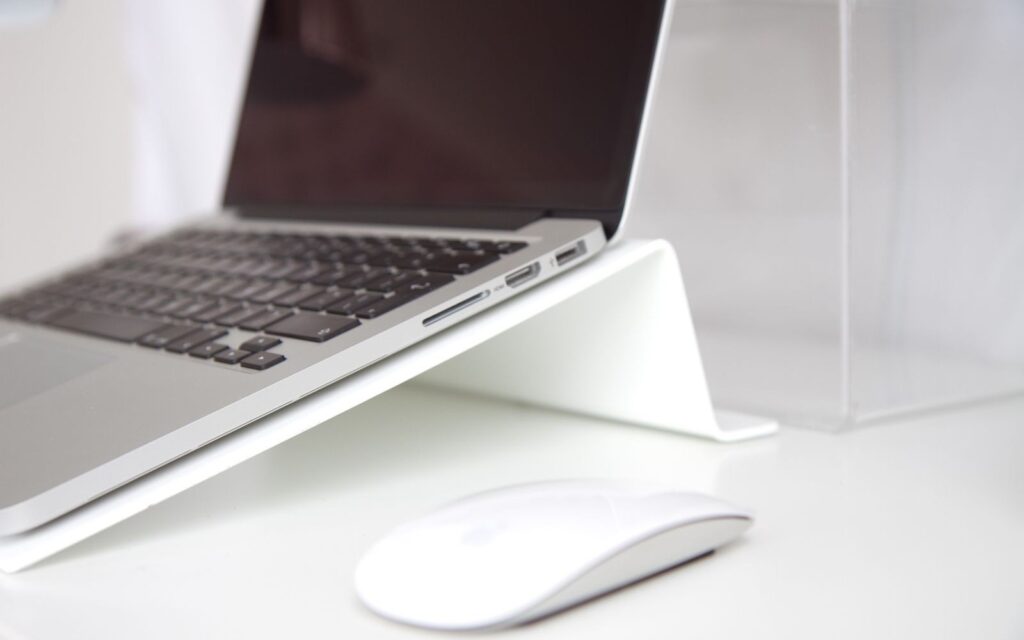
A laptop is a compromise. Mayo Clinic points out that the low screen height and cramped keyboard and touchpad can cause discomfort. If you use a laptop at a desk, its advice is an external keyboard and mouse plus a laptop stand to mimic a desktop setup. In practice that means the screen goes up on a stand or a stack of books until the top sits at or just below eye level, and the keyboard and mouse stay at elbow height in front of it. For a few minutes on the sofa, nothing terrible happens. For a work day, it is worth fixing.
Keyboard, mouse and phone
Keep the keyboard directly in front of you with shoulders relaxed and elbows close, per OSHA. Mayo Clinic adds that your wrists should stay straight, hands at or slightly below elbow level, and a mouse should sit within easy reach on the same surface. If the pointer has adjustable sensitivity, set it so a light touch works. On calls, use speaker or a headset rather than cradling the phone between your head and neck, and keep things you use often within easy reach so you are not twisting for them.
Light, glare and eyes
OSHA says to arrange the room to reduce glare from overhead lights, lamps and windows, and to avoid sitting directly under an air conditioning vent that blows on you. The American Academy of Ophthalmology reports that people normally blink about 15 times a minute but only about 5 to 7 times a minute at a computer, which dries the eye surface. Its tips: blink on purpose, look up and away at something distant now and then, match screen brightness to the room, try more contrast, consider a matte screen filter, and use artificial tears if your eyes feel dry. If you wear glasses for computer work, the Academy notes that computer glasses focus at about 20 to 26 inches and are not the same thing as blue-light-blocking glasses. If your eyes stay red, blurry, watery, light-sensitive or painful, see an ophthalmologist.
A 15-minute setup checklist
- Sit the way you normally do, then adjust the chair until your feet rest flat (or on a footrest) and your back is supported.
- Bring the keyboard in front of you so elbows are close to your body and wrists are straight.
- Slide the screen straight ahead, 20 or more inches away, and raise or lower it until the top is at or slightly below eye level.
- Move the mouse next to the keyboard, on the same surface.
- Clear the space under the desk so legs and feet can move.
- Turn the screen so windows are beside it, not behind it or in front of it, and tilt or shade any lamp that reflects.
- Put the phone on speaker or use a headset for long calls.
- Set a reminder to stand, stretch and look at something far away.
The part no gadget fixes: movement
Mayo Clinic is blunt that sitting in the same position for hours is not good for your body, even with a perfect setup. It recommends getting up and walking around as often as you can, doing some work standing if possible, and stretching your hands, fingers and arms while seated. OSHA also lists prolonged periods of activity and failing to notice early warning signs as factors that can turn small problems into injuries, so pay attention if the same spot keeps hurting.
Frequently asked questions
Do I need a standing desk?
Not necessarily. Mayo Clinic suggests doing some work standing if possible, but a fixed desk plus regular breaks to stand and walk helps too.
Are screens bad for my eyes long term?
According to the American Academy of Ophthalmology, looking at a screen for long periods does not permanently damage your eyes, though it can cause dry, tired, blurry eyes.
Is a laptop stand worth it?
If you use a laptop at a desk most days, yes. Raising the screen and adding a separate keyboard and mouse is Mayo Clinic’s recommendation.
How far away should my monitor be?
OSHA says at least 20 inches. Mayo Clinic says between 20 and 40. The American Academy of Ophthalmology suggests about 25 inches.
Before you decide
Spend fifteen minutes with a few books and a mirror before you spend money. Fix the screen height, the keyboard distance and your feet first. If something still hurts after a week of adjustments, that is the moment to see a professional, not to buy a bigger gadget.
Sources
- Computer Workstations eTool, Occupational Safety and Health Administration
- Workstation Components: Monitors, Occupational Safety and Health Administration
- Workstation Components: Chairs, Occupational Safety and Health Administration
- Workstation Components: Keyboards, Occupational Safety and Health Administration
- Workstation Components: Desks, Occupational Safety and Health Administration
- Workstation Environment, Occupational Safety and Health Administration
- Work Process and Recognition, Occupational Safety and Health Administration
- Office ergonomics: Your how-to guide, Mayo Clinic (May 2023)
- Computers, Digital Devices, and Eye Strain, American Academy of Ophthalmology (June 2024)
Last updated: November 2026. This article is general information, not medical advice.